The iFleet Platform User Guide Clear Instructions from Your First Login
Step-by-step instructions for the iFleet web platform and mobile app, written for UAE fleet, operations and HR teams, with practical examples from Mussafah yards, E11 deliveries and summer days at 48 °C.
The platform is built on five core elements. Understanding them first makes every other feature easier to use.
A unit is any asset fitted with a tracker, such as a pickup, a bus, a refrigerated truck or a generator. Each unit has its own settings, sensors, alerts and history.
A unit group is a set of units that you manage together, for example "Dubai branch", "School buses" or "Night shift". Settings applied to a group apply to every unit in it.
Geofences are areas you draw on the map, such as yards, customer sites, schools and restricted zones. Events are what units report, for example a trip start, a speed limit exceeded or a geofence entry. Reports summarise weeks of events in a table you can share with management.
Web platform: full control, best suited to setup, reporting and the control room screen.
Mobile app: the live map, alerts and trip history on your phone.
Both use the same account and display the same data.
The iFleet team creates your account and sends you the login link, your username and a temporary password.
Resetting a forgotten password. Select the Forgot Password link on the login page and follow the instructions in the email. If the email does not arrive, check your spam folder, then send us your username and we will reset the password for you.
To use your phone, open the iFleet mobile app and sign in with the same username and password.
Steps
Open the login link you received from iFleet and bookmark it on the control room PC.
Enter your username or email address, followed by your password.
Select Login. The monitoring screen opens with your units on the map.
Change your temporary password immediately in User Settings.
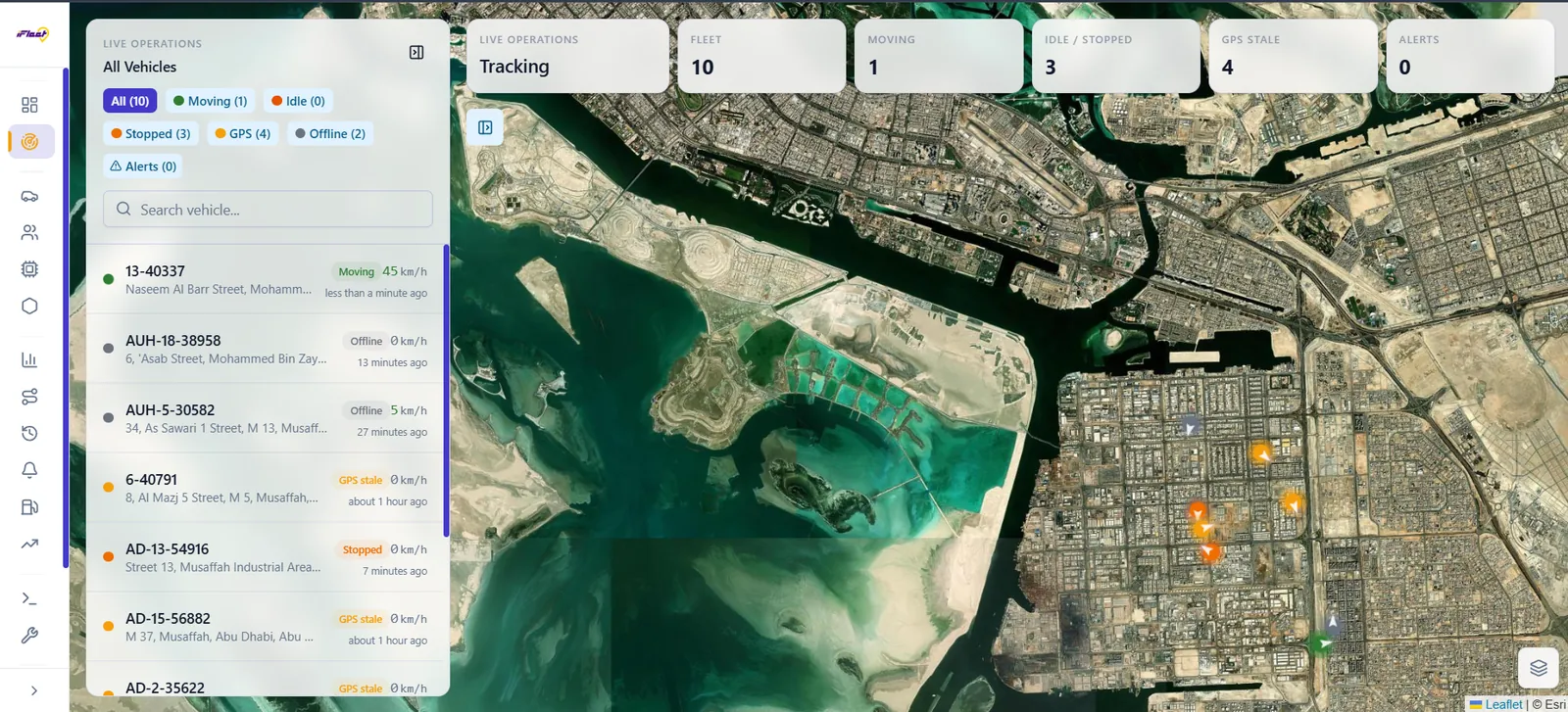
The monitoring screen is the live view of your fleet, and the screen your control room keeps open throughout the day.
The Units list shows every vehicle you are permitted to see, with its status, speed, last known address and the time of its last message. Select a unit to centre the map on it and open its details.
Status colours show what each vehicle is doing now: moving, idle (engine on, not moving), stopped (engine off) or offline (no message received for some time).
The status bar summarises the fleet with the total number of units, active and inactive units, open alerts and system notices. If the offline count rises in the morning, start with Troubleshooting.
Steps
Enter a plate number or driver name in the search box above the units list.
Select the unit. The map zooms to the vehicle and shows its speed, heading and address.
Turn on follow (where available) to keep the map centred on the vehicle while it moves.
Open the unit menu to go directly to its track, events or reports for the day.
A track draws a vehicle's route on the map for any period you choose, such as a single delivery run, a full shift or last Thursday.
Use tracks to answer customer queries, such as whether the driver was at the gate at 10:00, to compare a route with the plan, or to confirm whether a vehicle used the E311 when the job specified the E11.
Steps
Open Tracks and select the unit.
Choose the period: today, yesterday or a custom start and end time.
Run the track. The route appears on the map with its stops, and the line colour indicates speed along the way.
Select any point on the line to see the exact time, speed and address.
Events is the record of everything your units reported, including speeding, harsh braking, geofence entry and exit, ignition on and off and sensor alarms.
Events are the source data for alerts and reports. If an expected alert did not arrive, check Events first. If the event is listed, the alert rule needs adjusting, and if it is not, the unit did not report it.
Steps
Open Events and choose the period and the units or group.
Filter by event type, for example speeding events or geofence events only.
Select an event to view it on the map with its time, speed and address. With an AI dashcam, the video clip is also linked to the event.
A geofence is a defined area on the map. When a unit enters or leaves it, iFleet records the time and can send you an alert.
Steps
Open Geofences and choose a shape: a circle (quick to draw and suitable for a yard or school), a polygon (follows the actual outline of a site) or a route corridor where available.
Draw the geofence on the map. Switch to satellite view and zoom in so that the edge follows the actual boundary fence.
Give it a clear name, for example Yard · Mussafah M-40 or Customer · Al Quoz Ind. 3.
Save it, then assign it to the units or groups that should use it.
To receive a notification as well as a log entry, turn on entry and exit alerts in Notifications.
Setting
What it controls
Yard or depot
A circle with a radius of 150 to 300 m, or a polygon around the boundary fence.
Customer site
A polygon that includes the loading area and the access road to the gate.
School
A circle around the drop-off area, so that parents and the school receive arrival times.
Restricted zone
A polygon with an entry alert, for example residential areas closed to heavy trucks.
Open a unit from the Units menu to view its settings. Each tab controls one aspect of how the vehicle is tracked.
Our team configures most tabs during installation. In daily use, you will mainly work with Basic, Mileage & Engine Hours, Notifications and Maintenance.
Setting
What it controls
Basic
Unit name (use the plate number, for example AUH 13-40337), vehicle type, model and registration details.
Icon
The icon shown on the map. Using different icons for buses, trucks and cars makes the map easier to read.
Sensors
Ignition, temperature, door, fuel level and other inputs fitted to the vehicle.
Mileage & Engine Hours
The counters used for reports and maintenance. Set them to match the actual odometer reading.
Advance
Advanced settings, such as how trips and stops are detected and how messages are filtered.
Sensors extend the tracker beyond location data. They are configured in the Sensors tab of each unit.
Each sensor has a name, the device input it reads and a conversion that displays the value in real units (°C, %, litres). Our technicians calibrate each sensor during installation.
Setting
What it controls
Ignition
Indicates when the engine is running. Trips, idling and engine hours are calculated from it.
Temperature
Cargo or cabin temperature for cold chain operations, with upper and lower limits.
Door
Cargo door opening and closing events, with time and location.
Fuel level
Tank level, used to identify refuelling and sudden drops.
OBD-II
Engine data such as fault codes, where the vehicle and device support it.
These two counters drive distance reports and service reminders. Keep them aligned with the readings on the vehicle dashboard.
For trucks and cars, distance is the key measure. For generators, cranes, loaders and refrigeration units, engine hours are a better indicator of wear than kilometres.
Steps
Open the unit and go to Mileage & Engine Hours.
Enter the current odometer reading from the dashboard and, for machinery, the engine hours.
Save. From this point, iFleet adds every kilometre and engine hour to these values.
Groups let you manage many vehicles at once and restrict each manager's view to their part of the fleet.
UAE fleets commonly group units by emirate or branch (Abu Dhabi, Dubai, Sharjah), by vehicle type (buses, pickups, heavy trucks), by customer contract or by shift.
Keep each vehicle's documentation alongside its tracking data.
In Vehicle, you record registration details, insurance and maintenance history. With all dates in one place, you can easily see which registrations and policies are due for renewal.
Plan services by kilometres, engine hours or days, and receive reminders before each service is due.
Follow the intervals recommended by the vehicle manufacturer. In the UAE, heat, dust and long idling periods often justify shorter intervals than the standard schedule in the manual.
Steps
Open Maintenance, or the Maintenance tab of a unit.
Create a service plan, for example "Oil and filter" every 10,000 km or 250 engine hours, whichever comes first.
Set a reminder ahead of the due point, for example 500 km or 7 days before.
When the service is complete, mark it as done with the date and cost in AED. The next due point is set automatically.
Some devices accept commands from the platform, such as preventing the engine from restarting or switching an output.
Remote immobilisation prevents a stolen or unauthorised vehicle from being restarted, where the device supports it. Use it only on stationary vehicles and follow your company's safety procedure.
Steps
Open the unit or unit group and go to Commands.
Choose the command. Only commands supported by the installed device are listed.
Send the command and wait for confirmation that the device has received it.
eLogic lets you build "if this, then that" rules from fleet data, so that actions are taken automatically without waiting for someone to notice.
Each rule has a condition and an action. A condition can combine several data points, such as speed, location, time of day and sensor values. An action can be an alert, a report, a command or an entry in the event log.
If a school bus is moving with a door open, alert the transport supervisor.
If a refrigerated truck is above 8 °C for more than 10 minutes at a customer site, alert dispatch.
If a vehicle moves outside the yard between 23:00 and 05:00, alert security.
Eco Driving scores each trip according to how the vehicle was driven, so that coaching is based on facts rather than opinions.
The score takes account of speeding, harsh braking, harsh acceleration, sharp cornering and idling. Each factor has a weight, so you can, for example, make speeding count more heavily than idling.
With an AI dashcam, events such as phone use, fatigue and close following include a short video clip, which makes coaching conversations considerably easier.
Steps
Open the Eco Driving tab of the unit to set the thresholds and weights.
Run the driver behaviour report each week and review the three lowest scores.
Review the events and video clips with each driver, then compare the following week's score.
Control who can see what. Administrators create users, assign their permissions and choose the units each user can view.
These are typical configurations, and the exact permissions are selected individually in Users. In Staff, you add your company's personnel, such as supervisors, mechanics and dispatchers, and link them to unit groups so that the correct names appear on reports and alerts.
Setting
What it controls
Administrator
Full access, including users, commands and settings. Limit this role to one or two people.
Manager
Live map, reports and alerts for their assigned units or groups, without the ability to change device settings.
Viewer
Live map and history only. Suitable for a customer or a school.
A binder collects related items, such as units, geofences and reports, so that they can be managed and reported on together.
Use a binder for a single contract or project, for example all the vehicles, sites and reports for a construction project in Al Dhafra. When the project ends, the complete set is easy to locate and close.
Services connects iFleet to other systems, such as your ERP, dispatch or HR system, or a customer portal.
Typical uses include sending trip and arrival data to an ERP, sharing live locations with a customer and importing driver lists from an HR system. Our team sets up each integration with you, because every system is different.
Most issues have a simple cause. Check the points below before you contact us, as many can be resolved within minutes.
Setting
What it controls
Unit shows offline
Check whether the vehicle is parked underground or in a steel building, and whether its battery was disconnected for repairs. Then check the time of the last message. If the unit is still offline after 15 minutes of driving in the open, send us a message.
Times appear incorrect
Confirm that the time zone in User Settings is set to GMT+4.
Distance does not match the odometer
Update the counter in Mileage & Engine Hours.
Alerts are not arriving
Confirm that the event appears in Events, then check the alert rule, then the notification settings on your phone.
Report is empty
Check the selected period, the selected units and the time zone.
Temperature or fuel readings appear incorrect
Check the sensor and the probe position, then ask us to verify the calibration.
Select Forgot Password on the login page. If the reset email does not arrive, send us your username on WhatsApp and we will reset the password for you.
Can my team use the platform in Arabic?
Yes. Each user can choose Arabic or English in User Settings, and our support team assists in both languages.
How far back can I view trip history?
History is retained for an extended period that depends on your plan. Tell us the date you need and we will confirm that the data is available.
Why does a vehicle show as offline when it is in use?
Usually the vehicle is parked without signal coverage, for example in a basement or steel building, or its battery was disconnected. See the troubleshooting table above for further checks.
Can I give a customer access to their own deliveries only?
Yes. Create a viewer user for the customer and give it access only to the units or group that serve that customer.
Can reports be sent to management automatically?
Yes. Use Schedules to email any report daily, weekly or monthly in PDF or Excel format.
How do I add a new vehicle?
Send us the plate number and vehicle type. We install the device and set up the unit, and it then appears in your units list.
Is training available for new staff?
Yes. We train your team during installation and can arrange a refresher session for new supervisors. Contact us on WhatsApp to arrange one.
Platform support on WhatsApp
Send us the plate number, the time and a screenshot. Our Abu Dhabi team will reply in Arabic or English.